
Redirect to WeTransform
Send your users to a branded WeTransform page to upload and transform their data, then hand them back to your site with the signed result — secured end-to-end with HMAC signatures.
Why use the redirect flow?
Redirecting to WeTransform lets you offer a professional data transformation experience while maintaining your brand identity. It's perfect for onboarding suppliers, importing product catalogs, or processing client files.
Use Cases
- Product catalog uploads
- Supplier data onboarding
- Custom file layouts conversion
Features
- White-label branding
- Secure HMAC redirection
- Automatic customer creation
Redirect to your branded page
The redirect flow sends users to a dedicated, customizable WeTransform page (e.g., your-company.send-a-file.io) branded with your logo and colors. Once their file is transformed, they are redirected back to your site with a signed download link.
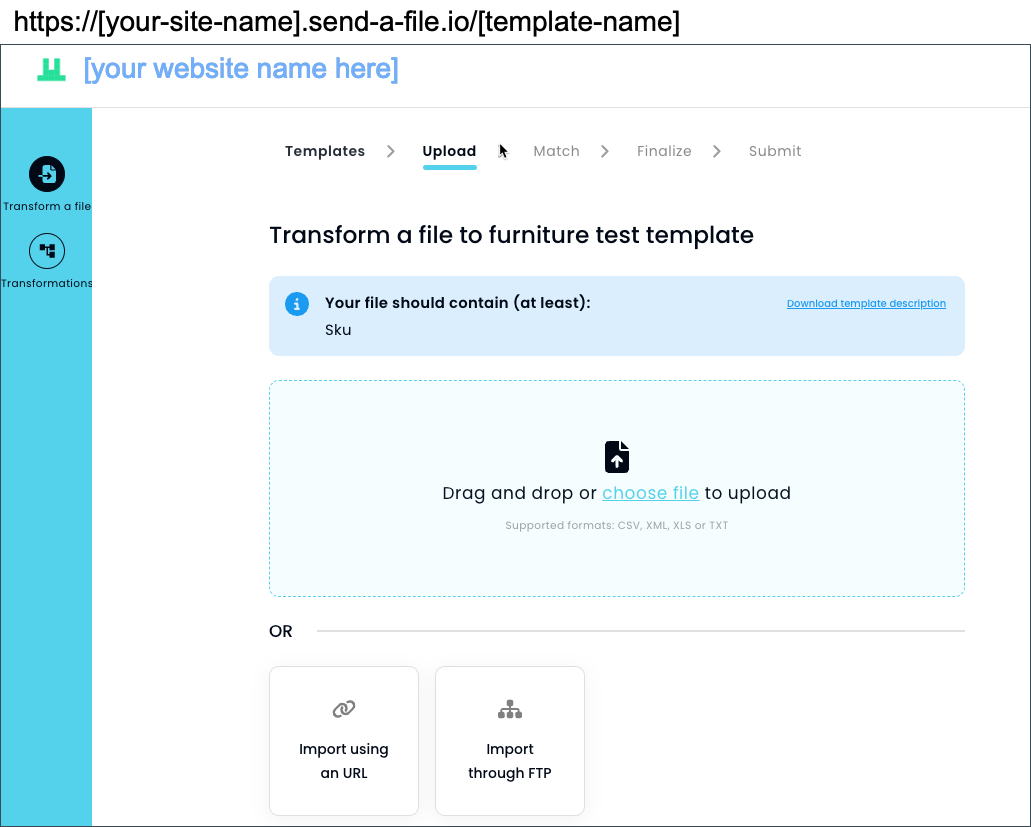
Looking for an inline, in-page experience instead of a redirect? That is now handled by Embed.
The Workflow
The typical user flow involves a secure redirection from your site to WeTransform, followed by a signed return to your application.
Configuration
-
Define Embed URL: Go to Integrations → Embed and set your unique URL (e.g.,
your-name.send-a-file.io). - Set Return URL: This is where users are sent back after the file is processed.
- Generate Signature Secret: This key is used to sign all communications and must be kept secret.
Implementation Steps
1. Create the link
Direct users to https://your-name.send-a-file.io. You can target a specific template or specify a customer_id in the query string.
2. Add HMAC Signature
Every request must include a signature parameter as proof of authentication (see Security section below).
3. Process the results
In your Return URL, verify the incoming signature and download the transformed file from the provided URL.
Security
All interactions are secured using HMAC SHA256 signatures to guarantee authenticity and integrity.
The signed message is the used parameters joined with : — only the parameters you actually send are included.
Everything below is computed live in your browser: change any value and the signatures and URLs update everywhere. Authenticate to replace the demo values with your organisation's real embed URL, signature secret and target formats.
Your website
 WeTransform
The URL at which you should redirect your customer should be:
WeTransform
Your website
The callback URL at which we will redirect your customer will be:
Webhooks
If you prefer an asynchronous approach, you can receive notifications when files are ready for download.
Event: file:ready-for-download
{
  "event": "file:ready-for-download",
  "customer_id": "65bd6fc913...",
  "customer_email": "email@example.com",
  "template_handle": "products",
  "submission_id": "0c6f2b1e-...",
  "download_url": "https://api.wetransform.com/download/qxyQYK..."
}X-Signature header. Always verify it before processing.